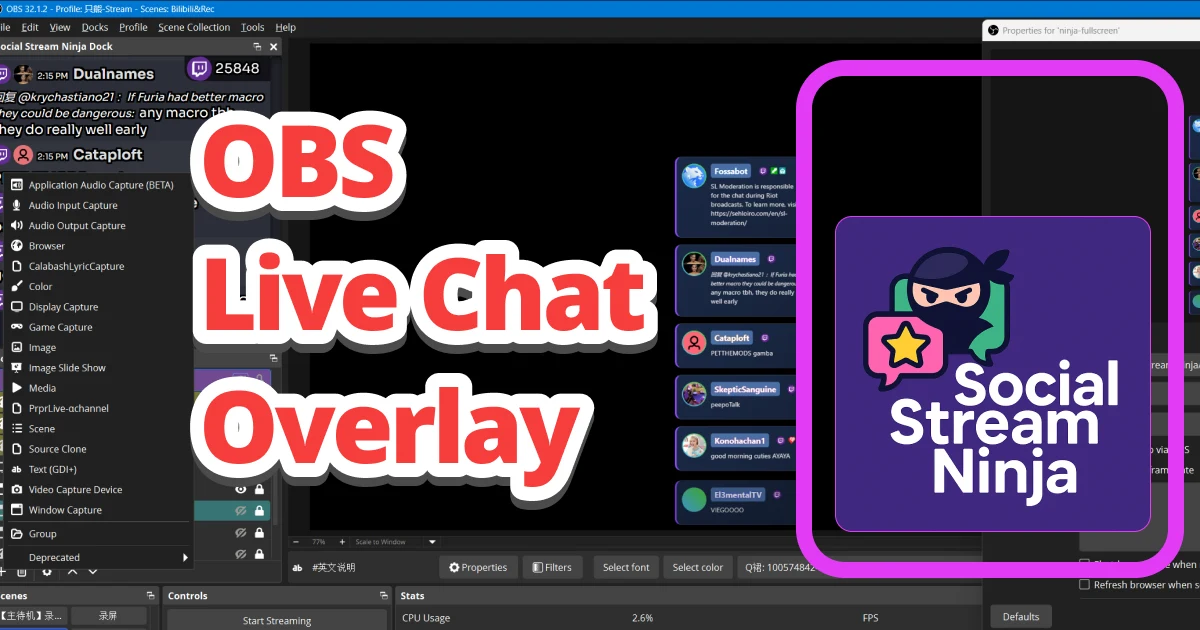
Social Stream Ninja (SSN) merges chat from YouTube, Twitch, TikTok and 120+ other platforms into a single browser source. To use a Doodlekuma Social Stream CSS, you point OBS at SSN’s Main chat overlay & control dock and paste the CSS there — not the native YouTube popout chat.
Official site: socialstream.ninja
📺 Prefer video? Head to YouTube and search “Social Stream Ninja”, or start with these:
What you need
- OBS Studio (or Streamlabs OBS).
- Social Stream Ninja set up per its official instructions.
- A chat platform connected to SSN, such as YouTube Live.
- A Social Stream CSS file from the Doodlekuma live chat gallery.
Social Stream vs YouTube CSS — pick the right one
Most Doodlekuma themes ship two CSS versions:
- Social Stream — for the SSN Main chat overlay & control dock (this guide). It is the feature-rich overlay, so the CSS can style the most message types.
- YouTube — for the native YouTube popout chat (
yt-live-chat-…DOM).
They target different DOM structures, so they are not interchangeable. Download the Social Stream version for the steps below.
Step 1 — Copy your overlay URL from Social Stream Ninja
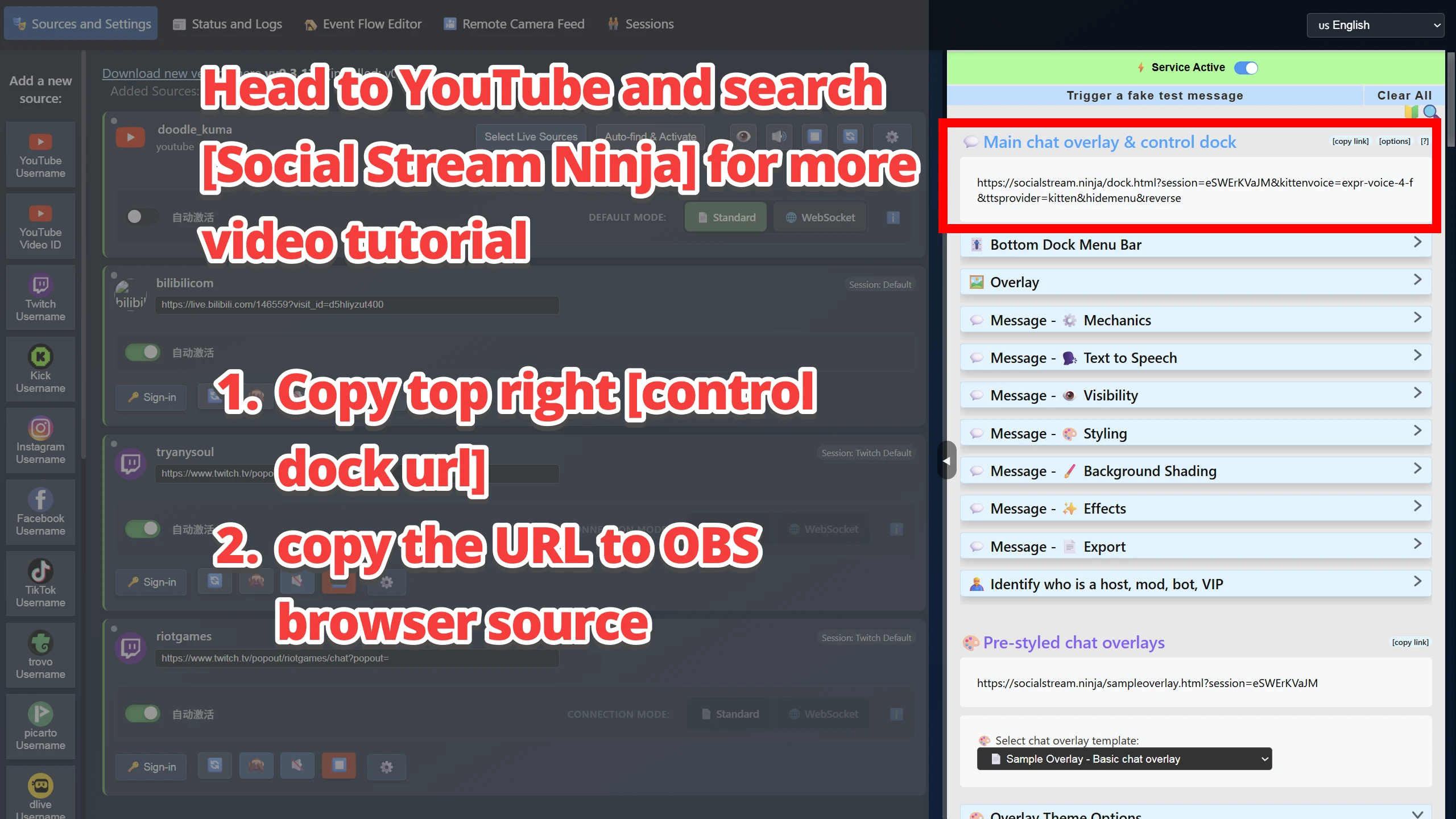
- Open Social Stream Ninja and go to Sources and Settings. Add your platform (for example, your YouTube channel) so real messages start flowing in.
- At the top of the right-hand panel, find Main chat overlay & control dock — the feature-rich overlay the Doodlekuma CSS is built for.
- Copy its URL with the [copy link] button in the top-right. It looks like
https://socialstream.ninja/dock.html?session=XXXXXXXX.
Keep this URL handy; it is exactly what OBS will load in the next step.
Step 2 — Add a Browser Source in OBS and paste the CSS
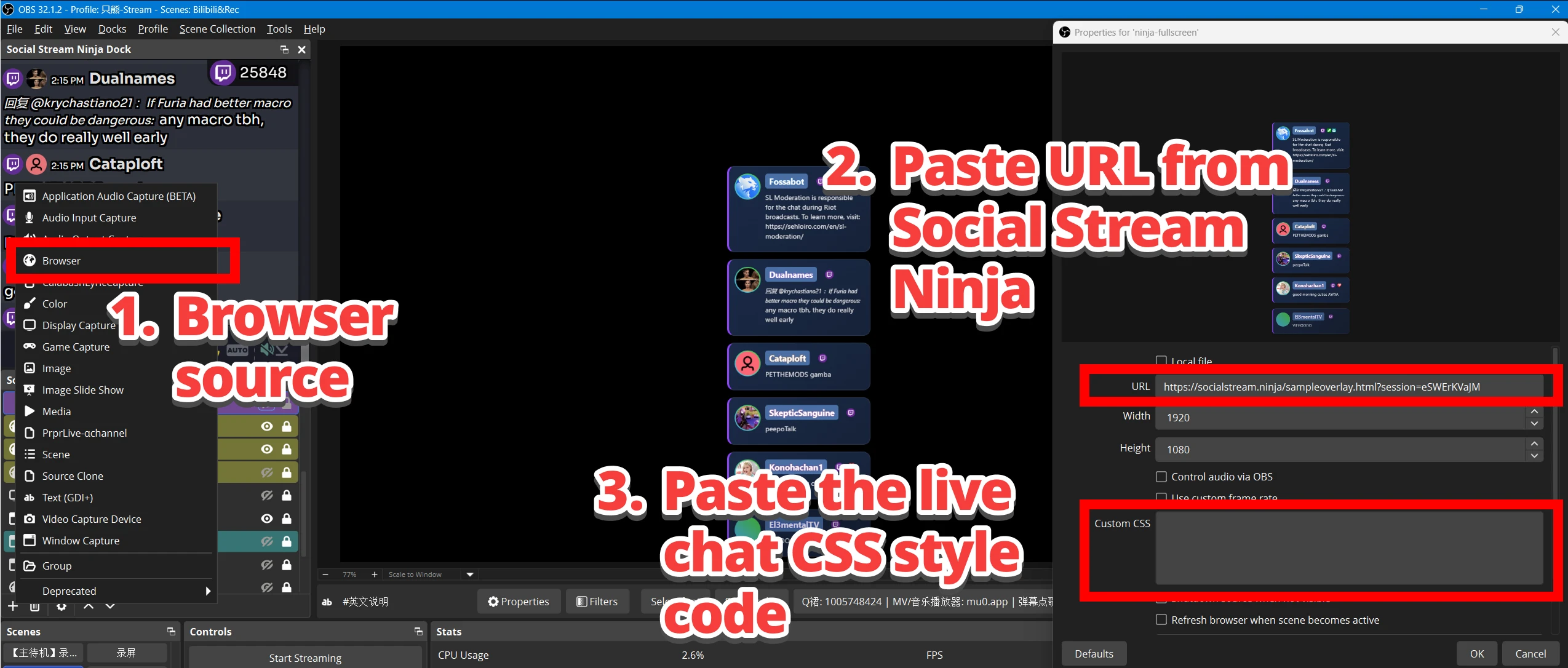
- In OBS Sources, click + and choose Browser.
- Paste the Social Stream Ninja URL from Step 1 into the URL field.
- Set Width
1920and Height1080(or match your stream layout). - Paste your Doodlekuma Social Stream CSS into the Custom CSS box.
- Click OK. Your styled live chat now renders on the browser source.
Where to get the CSS
Open the Doodlekuma live chat gallery, pick a theme, and choose the Social Stream download. Open the .css file, copy all of it, and paste it into the OBS Custom CSS box in Step 2. Re-download after tweaking a theme in its customizer.
Troubleshooting
The style does not apply
Confirm you downloaded the Social Stream version, and that your OBS URL is the SSN dock.html (Main chat overlay & control dock) — not a YouTube live_chat URL.
Nothing appears at all
Make sure real messages already show inside Social Stream Ninja before adding CSS. Source first, styling second — it keeps debugging pleasantly boring.
The DOM looks different from YouTube chat
That is expected. Social Stream Ninja and native YouTube chat use different DOM structures, so their CSS files must stay separate.
More Social Stream Ninja resources
- Official site: socialstream.ninja
- Creating custom chat overlays for Social Stream Ninja
- How to Set Up Social Stream Ninja (Standalone App) — Full Step-by-Step Guide
- Or search YouTube for Social Stream Ninja for more walkthroughs.